> For the complete documentation index, see [llms.txt](https://docs.talentmap.com/knowledge-base/llms.txt). Markdown versions of documentation pages are available by appending `.md` to page URLs; this page is available as [Markdown](https://docs.talentmap.com/knowledge-base/step-5-analyze-interpret-and-report/compass-admin/results/general/hide-demographics-from-restricted-users.md).
# Hide Demographics from Restricted Users
Control which demographic fields are visible to managers and other restricted users in your survey reports.
### Overview
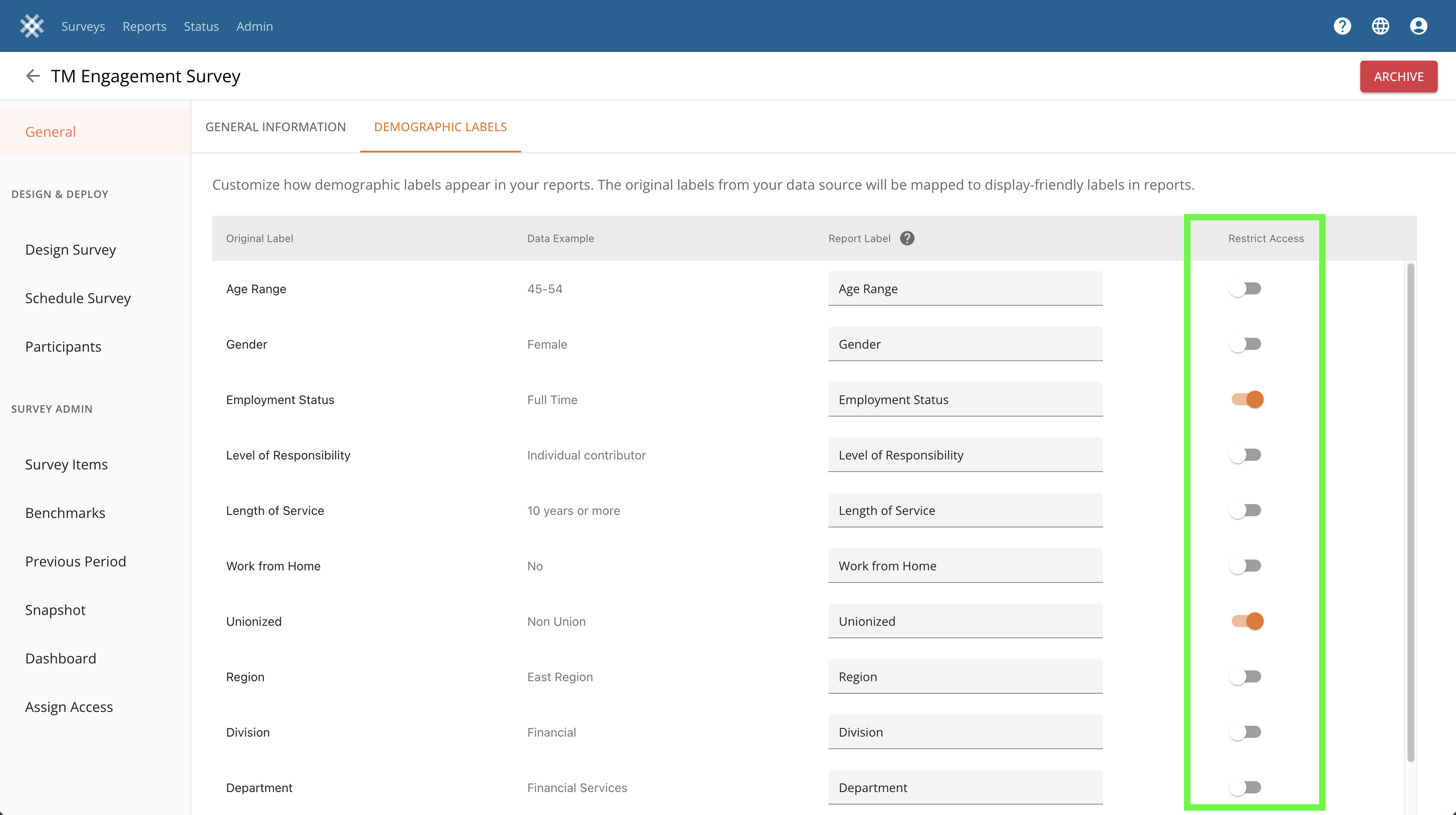
Some demographic data (like salary bands, union status, or performance ratings) may be too sensitive for all report viewers to see. The **Restrict Access** setting lets Compass Admins hide specific demographic fields from restricted users while keeping them fully visible to HR teams and full admins.
When Restrict Access is toggled **ON** for a demographic field:
* **Restricted users** (managers, executives with limited data access) will **not** see the field in reports, filters, heatmaps, or any other reporting view.
* **Unrestricted users** (HR, full admins) continue to see all fields as normal.
***
### Who Should Use This
* **Compass Admins** managing survey settings and report access
* Organizations with sensitive demographic data that shouldn't be visible to all report viewers
***
### How to Restrict a Demographic Field
1. Navigate to **Surveys** and select your survey.
2. Click **General** in the left sidebar.
3. Select the **Demographic Labels** tab.
4. Locate the **Restrict Access** column on the far right.
5. Toggle **ON** for any field you want to hide from restricted users.
6. Changes save automatically, no need to click a save button.
You can restrict as many fields as needed. Repeat step 5 for each field you want to hide.
***
### Understanding "Restrict Access" vs. "Hidden"
These two settings serve different purposes:
| Setting | Who It Affects | When to Use |
| ------------------- | -------------------------------------------------------------------------- | ----------------------------------------------------------------- |
| **Hidden** | Hides the field from **all users**, including HR and admins | When no one should see the field in reports |
| **Restrict Access** | Hides the field from **restricted users only**, HR and admins still see it | When only certain users (e.g., managers) should not see the field |
> **Example:** You want HR to analyze results by salary band, but you don't want individual managers seeing salary data in their team reports. Toggle **Restrict Access** ON for the salary band field.
***
### Who Counts as a "Restricted User"?
A restricted user is anyone who has been assigned limited data access through the **Assign Access** feature. This typically includes:
* Managers viewing only their direct team's data
* Executives with access filtered to specific departments or locations
Users with full admin or HR-level access are **unrestricted** and will always see all demographic fields, regardless of this setting.
***
### Frequently Asked Questions
**Will this affect existing reports immediately?** Yes. Once you toggle Restrict Access ON, restricted users will immediately stop seeing that field across all report views: dashboards, heatmaps, filters, and exports.
**What's the default for new demographic fields?** Restrict Access defaults to **OFF**, meaning new fields are visible to everyone until you choose to restrict them.
**Can I restrict a field and hide it at the same time?** If a field is set to **Hidden**, it's already invisible to all users, so the Restrict Access toggle has no additional effect. Use one or the other based on your needs.
**Will restricted fields still be included in data exports for admins?** Yes. Unrestricted users retain full access to all demographic data, including in exports.
***
### Troubleshooting
| Issue | Solution |
| --------------------------------------------------------------- | ----------------------------------------------------------------------------------------------------------------------------------- |
| I don't see the Restrict Access column | Make sure you're on the **Demographic Labels** tab (not General Information). |
| A restricted user can still see the field | Verify the user is actually marked as restricted in **Assign Access**. If they have full admin access, Restrict Access won't apply. |
| Changes don't seem to save | Refresh the page and check again. If the issue persists, check your browser console for errors and try a different browser. |
| I want to hide a field from everyone, not just restricted users | Use the **Hidden** toggle instead of Restrict Access. |
---
# Agent Instructions
This documentation is published with GitBook. GitBook is the documentation platform designed so that both humans and AI agents can read, navigate, and reason over technical content effectively. Learn more at gitbook.com.
## Querying This Documentation
If you need additional information that is not directly available in this page, you can query the documentation by asking a question.
Perform an HTTP GET request on the following URL with the `ask` and `goal` query parameters:
```
GET https://docs.talentmap.com/knowledge-base/step-5-analyze-interpret-and-report/compass-admin/results/general/hide-demographics-from-restricted-users.md?ask=&goal=
```
`ask` is the immediate question: it should be specific, self-contained, and written in natural language.
`goal` is what the user is ultimately trying to achieve, the reason they need the answer. Sharing it helps GitBook give you a better, more relevant answer. A goal is most helpful when it describes the outcome the user wants rather than restating the question. For example, with `ask=how do I create an API token`, a goal like `automate deployments from our CI pipeline` lets GitBook tailor the answer to that use case.
The response will contain a direct answer to the question and relevant excerpts and sources from the documentation.
Use this mechanism when the answer is not explicitly present in the current page, you need clarification or additional context, or you want to retrieve related documentation sections.